From Limitations to Smart Groups: Migrating 50 Jamf Policies in About 5 Minutes with jamf-cli and AI
I love a good cleanup project. I love it even more when I don’t have to do it by hand.
Recently I was helping a Mac admin team with their Jamf Pro setup, and we hit one of those messes that builds up slowly over years until it suddenly matters.
The setup: 50 policies, all scoped the “old way”
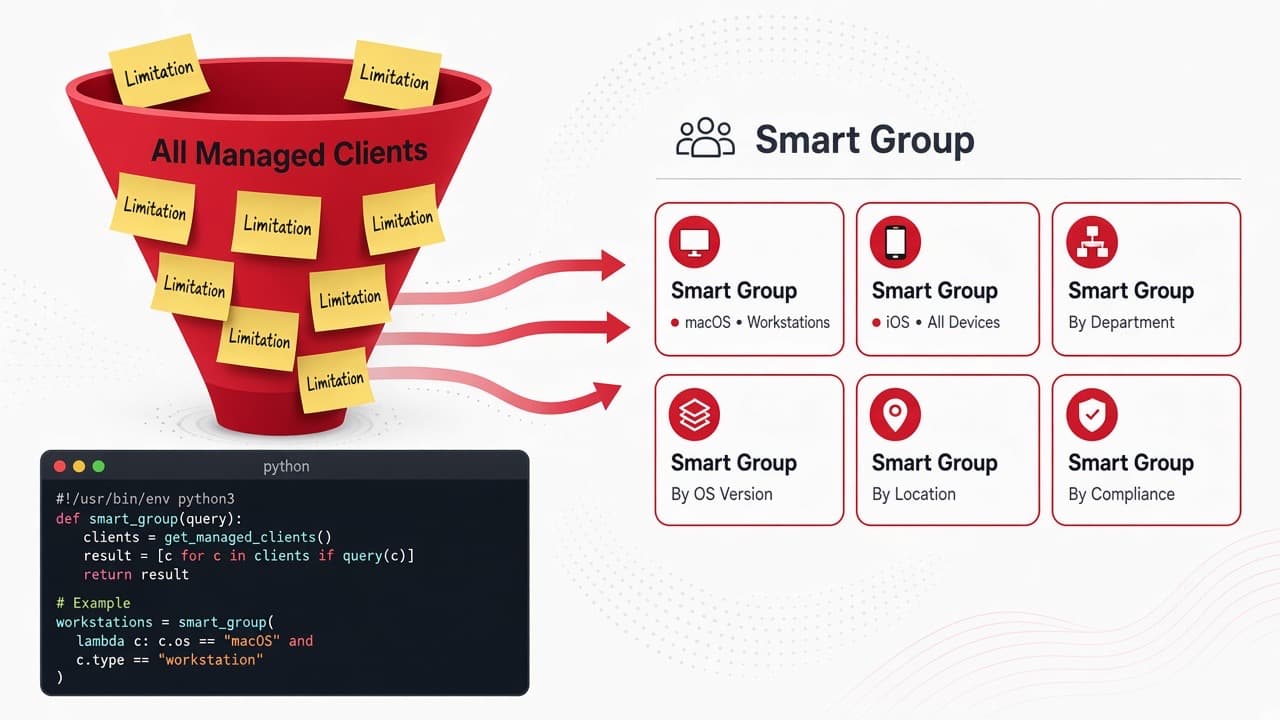
The team had 50 policies scoped to All Managed Clients, with Limitations narrowing each one to a directory (AD) user group. So the policy technically targeted every Mac, and the Limitation decided who actually got it.
This wasn’t a bad decision when they made it. For a long time, Jamf had no way to use directory user groups as smart group criteria. If you wanted “only people in this AD group get 1Password,” Limitations were how you did it.
Then Platform SSO happened
After our Platform SSO migration, users weren’t getting policies correctly. I’m not going to get into why here. That’s a whole story, and it gets its own post soon (more at the end).
For this team, replacing those Limitations became the path forward.
The fix existed, but the work didn’t sound fun
A while back, Jamf released the Username directory service group smart group criterion. That’s exactly what this team had been missing. They’d already been using it for new policies. The problem was the 50 old ones.
Redoing a policy by hand looks like this:
- Create a smart group with the right criterion and directory group.
- Open the policy, remove the Limitation.
- Scope the policy to the new smart group.
- Remove All Managed Clients.
- Save, double-check, move on.
That’s roughly 2-5 minutes per policy, times 50, and one slip means the wrong people get (or lose) software. I was dreading it.
Test one by hand first
Before automating anything, I built one by hand to see what “good” looks like. I made a smart group with the exact same name as the Limitation group. Their naming followed a pattern like:
Org - Software - 1Password
Matching names mean anyone reading the policy later knows exactly where the scope comes from.
The criterion was:
- Criteria: Username directory service group
- Operator: member of
- Value: Org – Software – 1Password
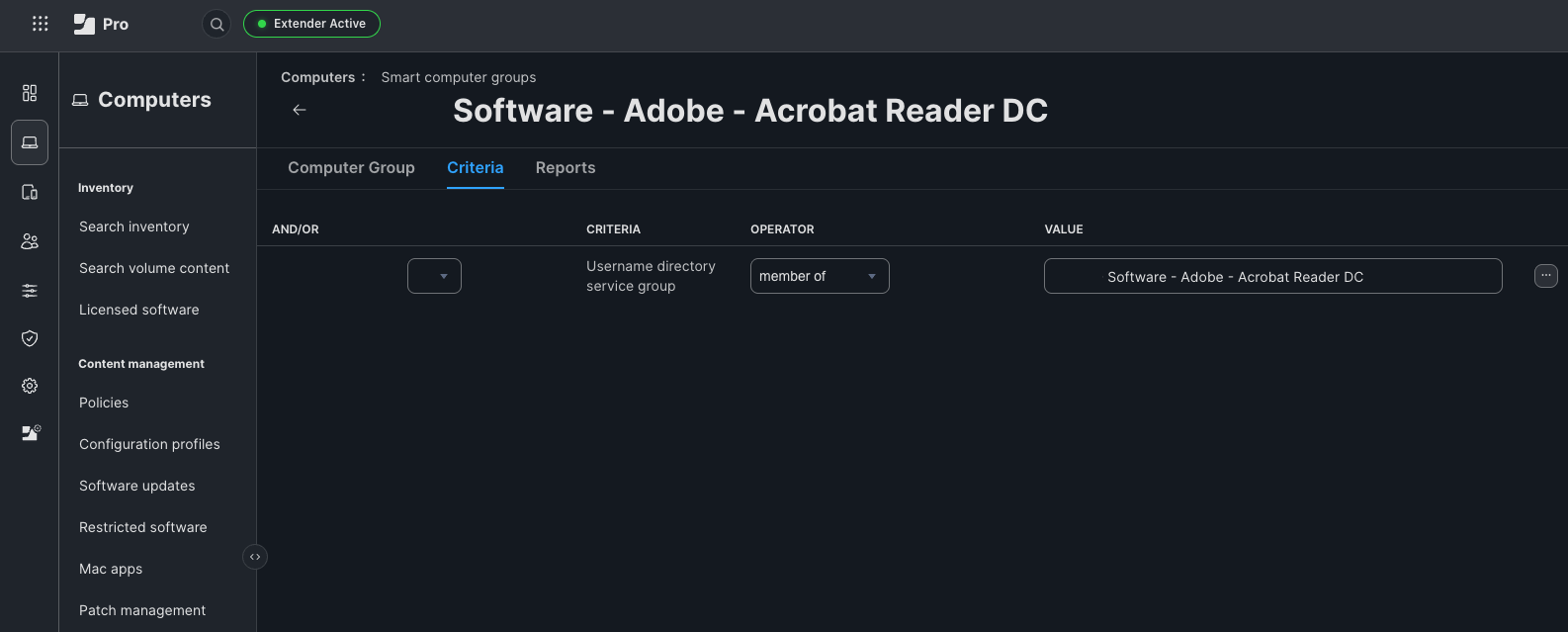
I scoped the policy to it, removed the Limitation and All Managed Clients, and it behaved. So I had a working pattern. Now I wanted a script to repeat it across the remaining policies.
Building it with Claude, on top of jamf-cli
I worked through the script with Claude in a real terminal, against the real tenant, one step at a time. A few moments stood out.
Wrong tool first. Claude’s first draft used the Jamf Classic API with curl-style calls and OAuth secrets. It would have worked, but I steered it to jamf-cli instead. Claude read the jamf-cli docs and rewrote the script around it. That removed credential handling completely, since the script just reuses your existing jamf-cli profile. No credentials are embedded in the script. Your jamf-cli profiles, logs and backup exports still need protecting, though, since they hold real tenant data.
Guessing, then asking. Claude didn’t know the exact criterion name or operator, so it put them in a config block and asked me to check them against the group I’d built by hand. A screenshot of my working group gave it the real values.
Failing usefully. The first real run failed with an empty error. Instead of guessing, Claude changed the script to print stdout, stderr and the XML it sent. That turned a mystery into this:
HTTP 409: Invalid base64 encoding for criteria
The gotcha: the criterion value is base64
This is the non-obvious part, and probably the most useful thing in this post if you’re doing this yourself.
The Jamf UI shows the directory group’s name as the criterion value. The API doesn’t store the name. It stores base64-encoded JSON with the group’s UUID and the directory service ID:
{"uuid": "<group uuid>", "serverId": "<directory service id>"}
Send the plain group name and you get the 409 above. To see what your own tenant stores, build one smart group by hand and dump it:
jamf-cli pro classic-computer-groups get --name "Org - Software - 1Password" -o raw
Decode the value and you’ll see the structure. Which raised the obvious next question: how do I turn a group name into a UUID and server ID, 50 times, without clicking around?
The “aha” moment: jamf-cli pro ldap groups
This is the part that made me grin. Claude went digging through jamf-cli’s help output and found this:
jamf-cli pro ldap groups --q "Org - Software - 1Password" -o json
It searches directory groups and returns the uuid and ldapServerId. That’s exactly the two values the criterion needs. The script takes an exact name match, builds the JSON, base64-encodes it, and we checked that the result matched what Jamf had stored for my hand-built group, byte for byte.
Huge kudos to the jamf-cli team. Somebody there has clearly lived the Jamf admin life, because that command is exactly what you need when you’re in the weeds.
What you’ll need
This was tested on Jamf Pro 11.32 with jamf-cli 1.31.1. The directory service group criteria arrived in Jamf Pro 11.29.0, and they need at least one LDAP directory or cloud identity provider configured in Jamf Pro.

What the script does
For every policy with user-group Limitations, it:
- Takes the Limitation group name.
- Looks the group up with
jamf-cli pro ldap groups. - Creates a smart group with the same name, using the Username directory service group / member of criterion.
- Removes the Limitation.
- Scopes the policy to the new smart group and removes All Managed Clients.
Exclusions and network segment Limitations are left alone. The script is dry-run by default, and it backs up each policy’s original XML before changing anything. Anything it can’t handle safely gets skipped and listed at the end.
Same intent, not identical behavior
This isn’t a perfect one-to-one conversion, and it’s worth knowing why before you run it. A directory group Limitation is checked against the user at the moment the policy runs. The smart group criterion uses Jamf’s cached directory membership instead. Jamf syncs that cache about every 20 minutes and usually refreshes existing users about once a day. So membership changes can lag a bit, and the results can differ on shared Macs where the person logged in isn’t the user on the computer record. (Jamf’s docs on directory service group criteria have the details.)
Validate effective scope before you apply, particularly on shared Macs or policies with existing targets, limitations or exclusions.
One caveat: individual-user Limitations use a Username / is criterion that’s untested, so check that on a test policy before trusting it.
The rollout: slow, then fast
First, a read-only scan to see what I was dealing with:
python3 jamf_limitations_to_smartgroups.py --profile <your-profile> --list
Here’s a scrubbed slice of the output:
  102  1Password - Installomator  |  groups: Org - Software - 1Password  users: -  targets: All Managed Clients
  103  Brave Browser - Installomator  |  groups: Org - Software - Brave Browser  users: -  targets: All Managed Clients
  104  Docker - Installomator  |  groups: Org - Software - Docker  users: -  targets: All Managed Clients
  105  Slack - Installomator  |  groups: Org - Software - Slack  users: -  targets: All Managed Clients
  106  Zoom Universal - Installomator  |  groups: Org - Software - Zoom Universal  users: -  targets: All Managed Clients
  ...
50 of 148 policies have limitations. Wrote ids.txt and policies_with_limitations.csv
So 50 of 148 policies needed work. The scan also turned up a couple of oddballs. One policy targeted specific computers. The script skips those and lists them at the end for manual handling. Another was an updater policy whose target was a smart group, not All Managed Clients. That’s why the script prints a NOTE when it’s about to replace a non-default target.
Watch out for this one: Jamf targets are additive. If you leave the old target group on the policy and add the new smart group next to it, you get everyone in either group, not just the people in both. That can quietly widen who gets the policy. If you need both conditions, use --keep-targets. It builds the old target groups into the new smart group’s criteria, so a Mac has to be in both. Then the policy is scoped to that one group. (Jamf’s docs on adding targets)
Then one policy, dry run first:
$ python3 jamf_limitations_to_smartgroups.py --profile <your-profile> --policy-id 101
Scanning 1 policies (DRY RUN)...

[101] Adobe Creative Cloud - Package
    limits: users=[] groups=['Org - Software - Adobe - Creative Cloud']
    old targets: ['All Managed Clients']
    -> Org - Software - Adobe - Creative Cloud
    [dry-run] ok

Would update: 1 policies
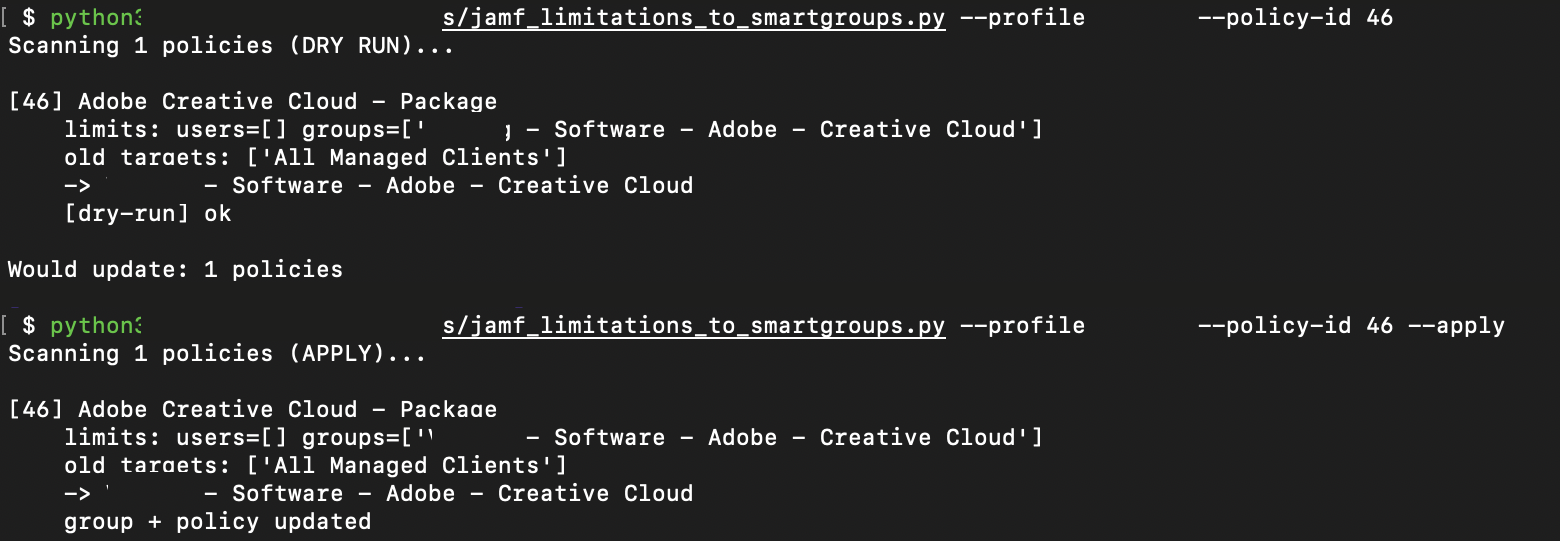
Output looked right, so I ran the same thing with --apply:
$ python3 jamf_limitations_to_smartgroups.py --profile <your-profile> --policy-id 101 --apply
Scanning 1 policies (APPLY)...

[101] Adobe Creative Cloud - Package
    limits: users=[] groups=['Org - Software - Adobe - Creative Cloud']
    old targets: ['All Managed Clients']
    -> Org - Software - Adobe - Creative Cloud
    group + policy updated

Updated: 1 policies
Backups in ./backup_<timestamp>/
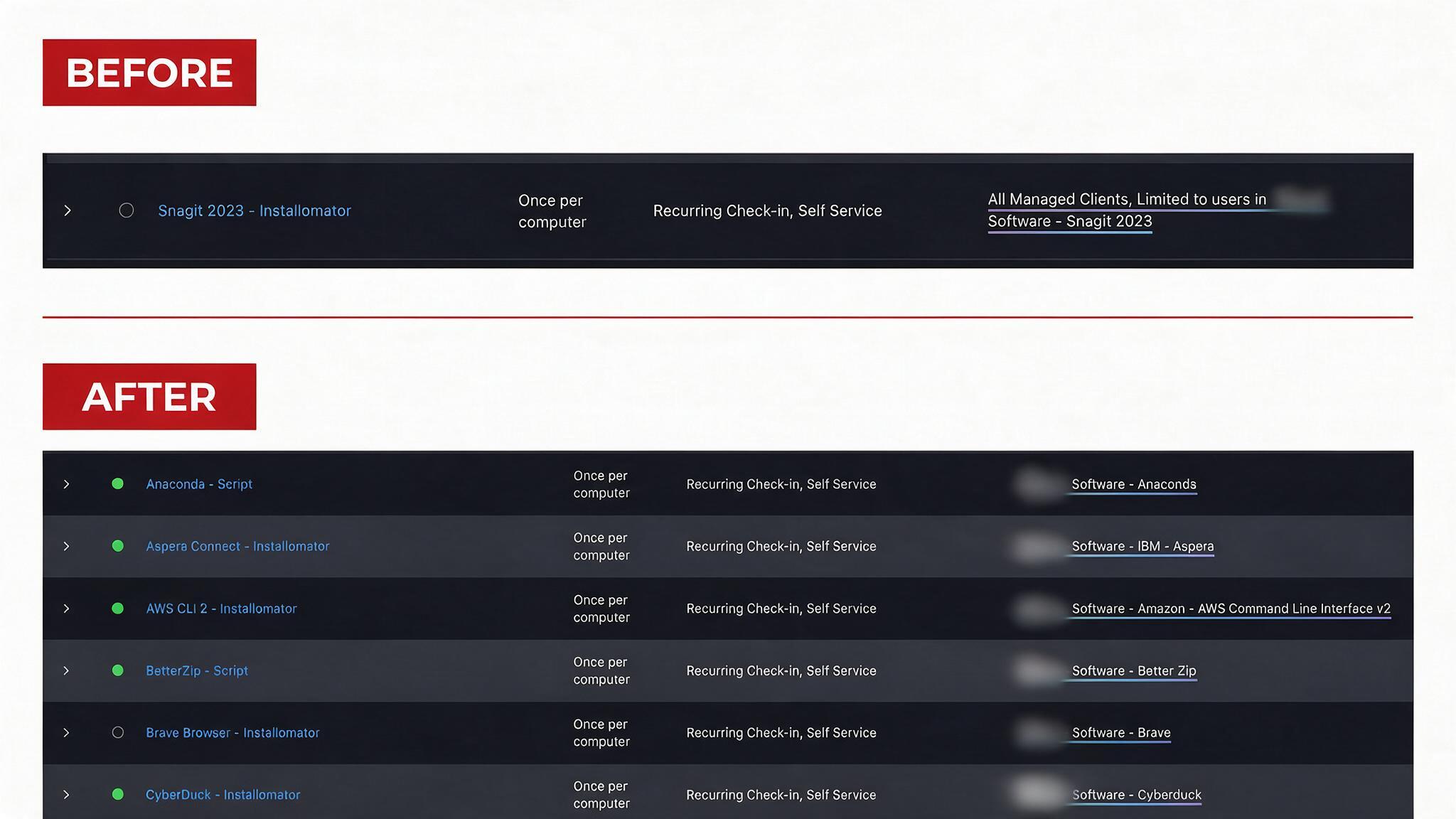
I checked it in the Jamf UI: smart group there, Limitation gone, All Managed Clients gone. From there I worked through the rest in batches from an IDs file, and each batch was bigger than the last as my confidence grew:
$ python3 jamf_limitations_to_smartgroups.py --profile <your-profile> --ids-file batch2.txt --apply
Scanning 9 policies (APPLY)...

[104] Docker - Installomator
    -> Org - Software - Docker
    group + policy updated
[107] Figma - Installomator
    -> Org - Software - Figma
    group + policy updated
[108] Firefox - Installomator
    -> Org - Software - Firefox
    group + policy updated
...
Updated: 9 policies
What would have been 2-5 minutes per policy by hand took about 5 minutes of run time for all 50. To be fair, that’s after building and testing the script, not the whole project.
The script is on GitHub in my macOS Admin Toolkit (MIT licensed): jamf_limitations_to_smartgroups.py
What actually changed
Two or three years ago, I could have written this script, but it would have taken longer than the clicking: API docs, reverse-engineering the base64 value, figuring out the lookup. For a one-off migration, most of us would have just clicked through it.
Now the math is different. The script came together in one working session, with real errors fixed against a real tenant.
But I want to be clear about who did what. Claude wrote most of the code and found the command that made it work. I picked the right tool, ran it against the real tenant, shared the screenshots and terminal output it couldn’t see, and decided when to go from one policy to batches. Verbose errors, dry-run by default and backups are what made it safe to iterate on a live system. The AI made it fast. Judgment kept it from going sideways.
Coming up: why Platform SSO broke this in the first place
I skipped the big question on purpose: why did moving to Platform SSO stop policies from landing correctly when they were scoped with Limitations? That one deserves its own post, including what I’d tell any team planning a PSSO rollout with policies built the old way.
Stay tuned. It’s a fun one.
About the author
Gabriel Marcelino — Gabriel Marcelino is an Apple endpoint engineer focused on Jamf, macOS, and practical automation for real-world device fleets.
Continue Reading
A Pretty Great Mac Admin Geek Moment
After participating in the Six Colors Apple in the Enterprise Report Card for several years, I was quoted for the first time. It became the inspiration I needed to finally start this blog.